ADA Compliance Check for Websites (WCAG 2.1 AA)
Paste a page's HTML to run automated WCAG 2.1 A and AA checks and get a criterion-by-criterion table of what still needs a manual review.
Recent
Your last 10 settings, saved only in this browser. Nothing is uploaded.
The ADA compliance checker is a free tool that runs automated WCAG 2.1 Level A and Level AA checks on HTML you paste in, then lists the issues it finds. It works as an ADA website compliance checker for the technical standard that the DOJ’s Title II web rule names, but it cannot tell you whether a site meets the law. All checks run in your browser, so nothing you paste is uploaded, and there is no account or sign-up.
Use it as a first pass, not a final answer. It shows which of the 50 WCAG 2.1 A and AA criteria have automated issues, which need review, and which need a manual check. Automated checks catch only part of accessibility problems, so keyboard testing, screen reader testing and content review are still needed. This is not legal advice.
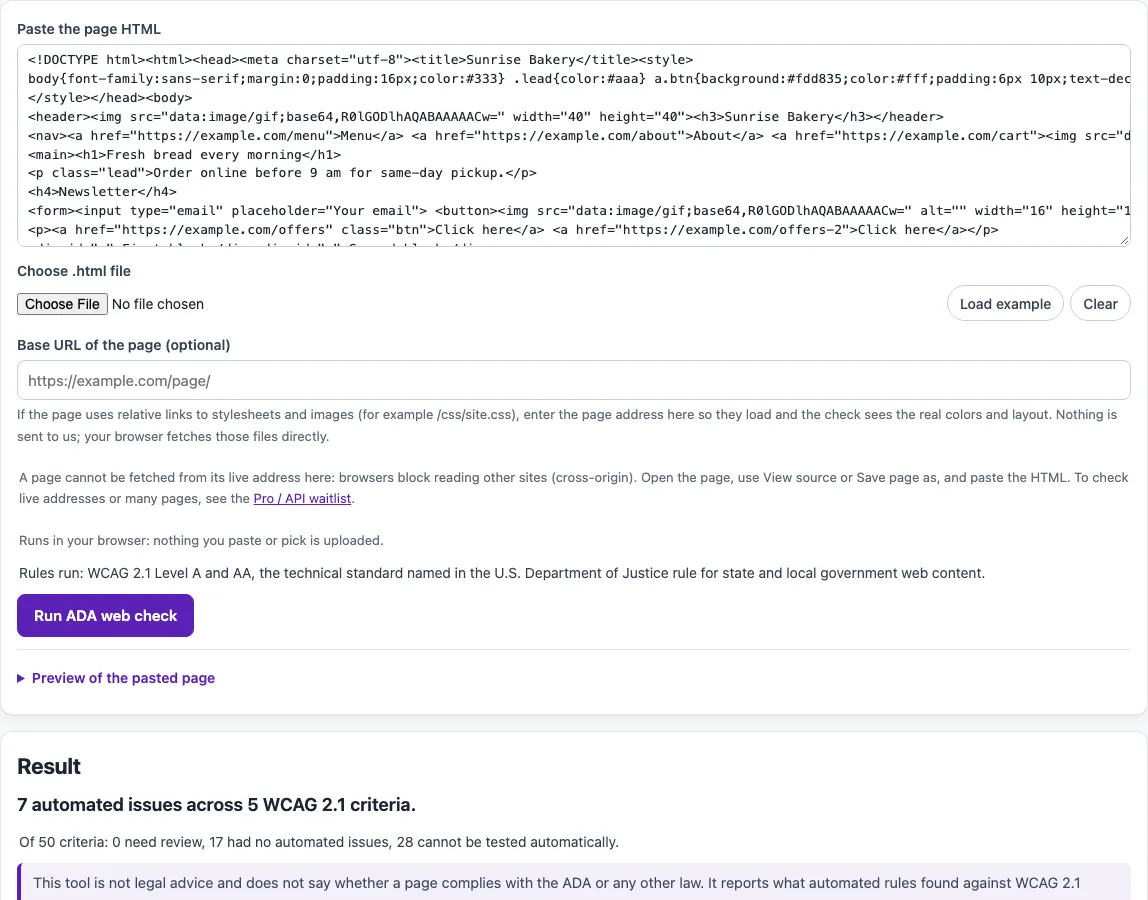
How to use the ADA compliance checker
- Paste the HTML of the page you want to check into Paste the page HTML, or use Choose .html file. To try the tool first, click Load example.
- Optional: enter the page’s address in Base URL of the page so its own stylesheets and images load and the color checks see the real colors.
- Click Run ADA web check.
- Read the header. It reads “n automated issues across k WCAG 2.1 criteria,” so you can see the total at a glance.
- Scan the coverage table. Each of the 50 WCAG 2.1 A and AA criteria shows one status: “Automated issues found (n),” “Needs review,” “No automated issues found,” or “Not testable automatically: check by hand.”
- Open the issue details below the table to see each problem the checker found.
- Click Download coverage CSV to save the coverage table.
- Use the report buttons to get your results in the format you need: Download CSV or Markdown, Print / save as PDF, or Copy summary. Repeat the check for each page template you use.
The rules are fixed to WCAG 2.1 Level A and AA, so there are no settings to change. The results depend only on the HTML you paste.
What does an ADA website compliance check test?
The check tests HTML against WCAG 2.1 Level A and Level AA. The DOJ’s Title II web rule for state and local governments names WCAG 2.1 Level AA as its technical standard. Level AA conformance means meeting all Level A and Level AA criteria. WCAG 2.1 has 78 success criteria: 30 at Level A, 20 at Level AA and 28 at Level AAA. This tool covers only the 50 A and AA criteria.
Not every criterion can be tested by a program. The axe-core rules map to only some of the 50 criteria (about 20 in axe-core 4.13.0), including 1.1.1 Non-text Content, 1.4.3 Contrast (Minimum) and 3.1.1 Language of Page, and some of those, such as 2.1.1 Keyboard, only partly. The table shows exactly which criteria had rules; the rest appear as “Not testable automatically: check by hand.” Because the rules are fixed, the same HTML always produces the same results.
“No automated issues found” means the rules that exist for a criterion ran and found nothing in this HTML. It does not mean the criterion is met. An image can have alt text that is still wrong, and a program cannot judge that. The table also lists 4.1.1 Parsing, which is Level A in WCAG 2.1 and was removed in 2.2. It appears because the ADA standard is WCAG 2.1.
How do I use the results in an ADA review?
Start with the criteria marked “Automated issues found”: each one lists the failing elements and how to fix them. Next, look at the “Needs review” items, which axe-core could not decide on its own. Then test every “Not testable automatically” row by hand, using the WCAG 2.1 AA checklist, the keyboard test and a screen reader. Keep the coverage CSV with your notes, so you can show which criteria were tested, how, and when. Run the check again after each fix.
Sources (checked 13 October 2026): ada.gov · ada.gov (2) · W3C · W3C (2) · W3C (3)
Frequently asked questions
Is the tool free, and is anything I paste uploaded?
The tool is free, and nothing you paste, type or pick is uploaded. Everything runs in your browser. There is no account or sign-up required.
Does passing this ADA compliant website test mean my site is compliant?
No. The tool never says a page is compliant or accessible. Automated checks find only part of accessibility problems, so a page with no reported issues can still fail a manual review.
Which standard does the ADA website rule use?
For state and local governments under Title II, the technical standard is WCAG 2.1 Level AA, and the DOJ says complying with it is required under the rule. For businesses open to the public under Title III, DOJ’s March 18, 2022 guidance says the agency does not have a regulation setting out detailed web standards. It names WCAG as helpful guidance and says businesses have flexibility in how they comply.
When does the Title II web rule take effect?
According to DOJ’s web rule page, public entities with a total population of 50,000 or more have until April 26, 2027. Those with a population under 50,000, and special district governments, have until April 26, 2028. DOJ published an Interim Final Rule in April 2026 that extended these dates. Check the official version in the Federal Register, which the DOJ page links to.
Do the ADA web rules apply to my business website?
DOJ’s guidance says the ADA’s requirements apply to goods and services offered on the web by public accommodations. Whether they apply to your specific site is a legal question, so ask a qualified lawyer. This tool does not make that determination.
What should I check by hand after running the tool?
Start with keyboard access, since many criteria the tool cannot test depend on it. The keyboard accessibility test page covers that step. Then review content and screen reader output. To check site for ada compliance properly, combine the automated run with these manual steps.
Can I change which rules the check uses?
No. The rules are fixed to WCAG 2.1 Level A and Level AA, so you cannot switch to other standards or levels.
Related tools
- Website accessibility checker: use it for a broader accessibility scan of a page.
- Alt text checker: use it to review image alt text, which automated checks cannot judge well.
- Keyboard accessibility test: use it for the manual keyboard testing that follows an automated run.
- Web accessibility testing plan: use it to plan manual testing beyond this tool.
- WCAG 2.2 checklist: use it if you need the newer WCAG 2.2 criteria.
- Color contrast checker: use it to check text and background contrast.
- ADA website compliance checklist: use it to work through items the tool cannot test.
- WCAG 2.1 AA checklist: use it for the full list of AA criteria this tool covers.