How to Write Alt Text
Answer a few questions about the image to find out what kind of alt text it needs, then write it with live checks and copy the HTML.
Recent
Your last 10 settings, saved only in this browser. Nothing is uploaded.
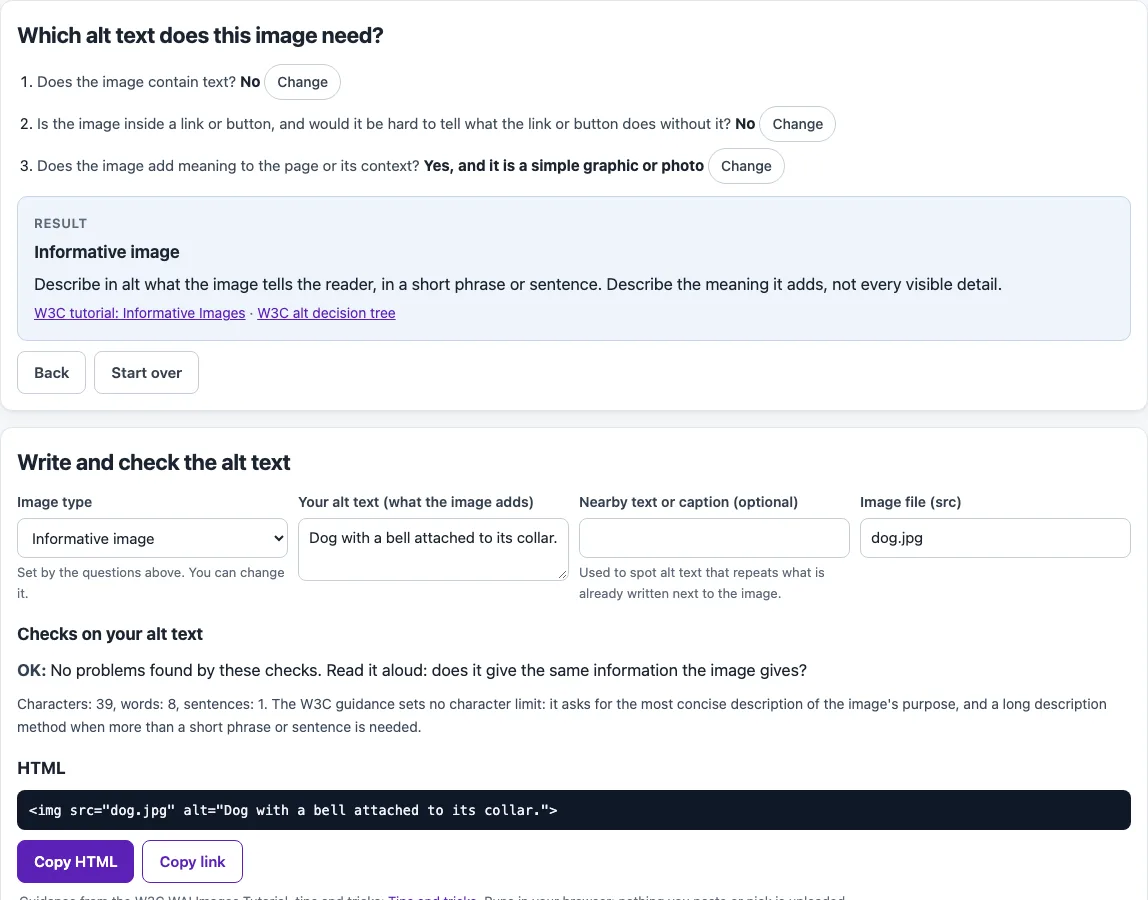
How to use this alt text tool
- Answer question 1: does the image contain text?
- Answer question 2: is the image inside a link or button, and is it hard to understand without it?
- Answer question 3: does the image add meaning to the page or its context?
- Answer question 4: is the image purely decorative, or not needed by users?
- If none of the answers fit, use question 5. It offers “group of images” and “image map” as options. If your image matches neither, choose “not listed or unclear” to be sent to the W3C Images Tutorial.
- Read the result. It names the image type, says what the alt should be, and links to the matching W3C tutorial page.
- Fill in the draft box: Your alt text, Nearby text or caption, Image file, link or button wrapper, and, where they apply, long description mode, group count and image-map areas.
- Read the live checks. They flag an empty alt where one is needed, a file-name-like value, placeholder words, phrases such as “image of”, “click here”, a value that repeats the caption, and more than one sentence.
- Use Copy HTML for the full snippet or Copy link to share your result. To go back a step, use Back or Change. To begin again, use Start over.
The character counter shows the length of your alt text but does not set a limit.
How to write good alt text?
Good alt text gives the user the same information the image gives on this page, in as few words as its purpose needs. Start from why the image is there, not from a list of what it shows. A short phrase or sentence is usually enough.
Read the page aloud in your head as if you were speaking to someone over the phone, and check that the alt text fits in naturally. Put the most important information first. Leave out “image”, “icon” and “picture”, because screen readers already announce that something is an image. Mention a painting, photograph or illustration only when that difference matters. Punctuation helps the listener, so use it.
Examples from the W3C guidance show the idea. A telephone icon gets alt=“Telephone”. A guide dog photo gets alt=“Dog with a bell attached to its collar.” A family photo on a page about family-friendly services gets alt=“We’re family-friendly.”
How to write alt text for images?
Decide what role the image plays first, then write the alt text to match that role. The W3C decision tree sorts images into a few types:
- Informative: a short phrase or sentence that gives the essential information.
- Decorative: alt="" when the image adds no information.
- Functional: inside a link or button, so describe the action or destination, such as alt=“Print this page”.
- Text in an image: repeat the same text that appears in the image. Do not describe fonts or shadows.
- Complex: a short alt that identifies the image, plus a long description elsewhere on the page.
- Group: when several images together show one thing, such as star ratings, one image carries the description and the others get alt="".
- Image map: the img alt gives the overall context, and each area states its destination or action.
The same picture can be informative in one place and decorative in another, so decide based on the page it appears on.
How to write alt tags?
An alt tag is the alt attribute on an HTML img element, for example <img src="phone.png" alt="Telephone">. The value goes inside the quotes. For a decorative image, leave the quotes empty with no space between them, as in alt="".
For inline SVG, give the svg element a title and point to it with aria-labelledby. Use a long description when a short phrase cannot carry the information. Only the author can decide whether an image is decorative.
Frequently asked questions
Is the tool free, and is anything I paste uploaded?
Yes, the tool is free and needs no account or sign-up. It runs in your browser, and nothing you paste, type or pick is uploaded.
Is there a character limit for alt text?
The W3C Images Tutorial sets no character limit. This tool sets no hard limit either and shows only a counter. Keep your alt text as short as its purpose allows.
Should I leave alt empty for decorative images?
Yes, use alt="" when an image adds no information, such as styling or a picture that repeats nearby text. Leaving the alt attribute out is not the same, because some screen readers announce the file name.
What should alt text say for a logo?
A logo that is not a link gets the organization’s name, such as alt=“Web Accessibility Initiative”; there is no need to add the word “logo”. When the logo is the only content of a link to the home page, describe the destination instead, as in the W3C example alt=“W3C home”.
Does passing the checks mean my page is accessible?
No. Automated checks find only part of the accessibility issues. Keyboard testing, screen reader testing and content review are still needed. This is not legal advice.
Related tools
- Alt text checker: use it to review alt text you have already written.
- Keyboard accessibility test: use it to check that links and buttons can be reached and used from the keyboard.
- Website accessibility checker: use it for a broader automated scan of a page.
- ARIA roles reference: use it to look up what a role means before you add one to an element.
- aria-label inspector: use it to see the accessible name of an element that has no visible text.
- aria-labelledby checker: use it to confirm that the IDs you reference, such as an SVG title, exist on the page.