Keyboard Accessibility Test
Paste HTML to see its tab order and keyboard problems, then use the checklist to test the live page with Tab, Enter, Space and Escape.
Recent
Your last 10 settings, saved only in this browser. Nothing is uploaded.
How to use the Keyboard accessibility test
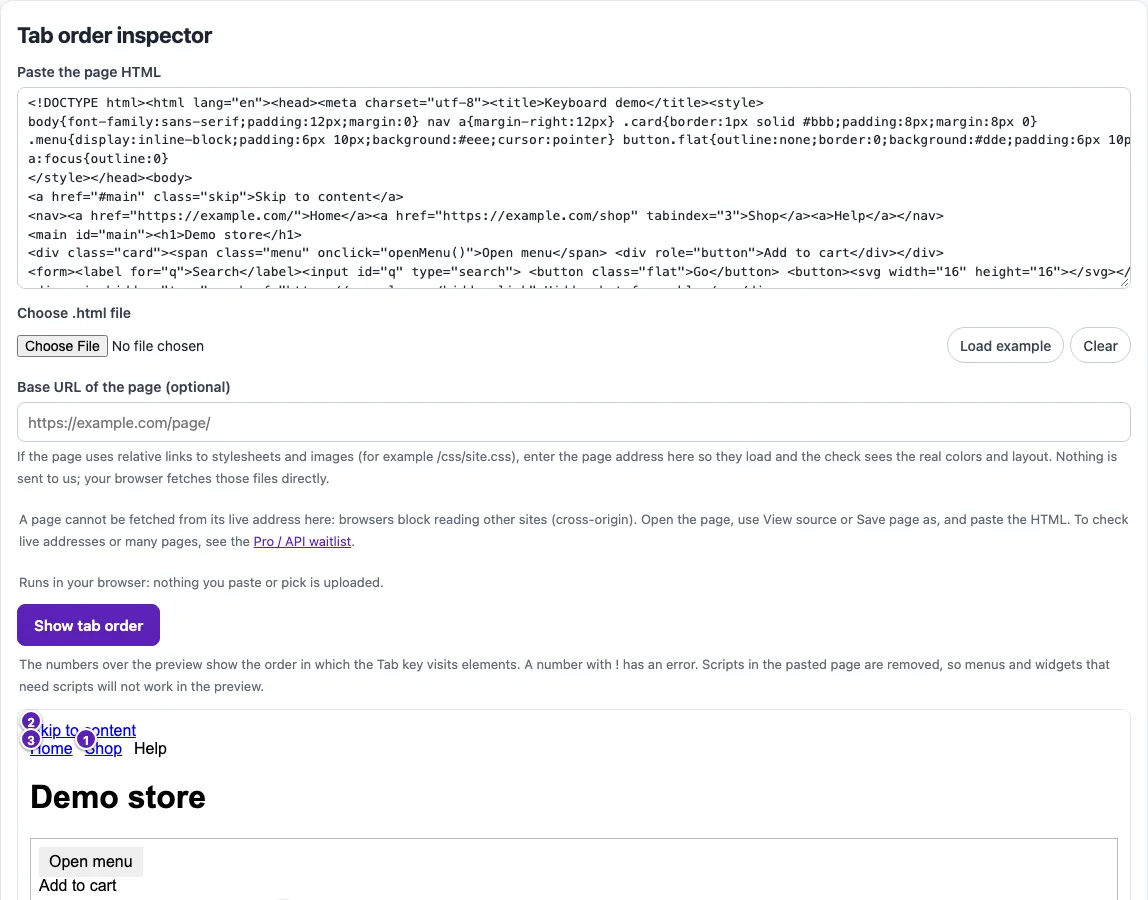
Tab order inspector
- Open the Tab order inspector and paste your page’s HTML into Paste the page HTML, or click Load example to see a sample with typical problems.
- Click Show tab order.
- Look at the preview. Each element in Tab order has a numbered badge. A badge marked ! means the tool found an error at that element.
- Read the table of order, element, accessible name, tabindex, and findings. Check that the numbers run in the sequence a keyboard user would expect.
- Check the second table, which lists flagged elements that are not in the Tab order. Interactive elements missing from the order are often unreachable by keyboard.
- Review the focus-outline style findings for any element where the outline was removed.
- Click Download CSV to keep the results.
Manual keyboard test
- Open the Manual keyboard test and go through the 14 steps on your own page.
- Mark each step as Pass, Fail, or Not applicable, and add a note in the notes field for anything you want to revisit.
Your answers stay in the page’s URL, so Copy link shares your progress. Use Print / save as PDF or Download Markdown to keep a record, and Reset to clear everything and start over.
What is keyboard accessibility?
Keyboard accessibility means a person can reach and use every part of a web page with a keyboard alone. Many people rely on this, including people who cannot use a mouse and people who use screen readers or switch devices. WCAG success criterion 2.1.1 Keyboard (Level A) requires that all functionality is operable through a keyboard interface without requiring specific timings.
Keyboard navigation accessibility is the related question of whether focus moves in a sensible order. Focus is the element currently selected on the page, and the Tab key moves it forward while Shift+Tab moves it back.
How does tabindex change the tab order?
The tab order is the sequence in which focus moves through a page. The HTML Standard says a negative tabindex makes an element focusable, for example by script, but it should be left out of sequential Tab navigation. A tabindex of 0 makes an element focusable and part of the Tab sequence. Positive values are placed before elements with tabindex 0 or less, with lower numbers first and ties kept in document order.
Some elements are focusable by default, including links with an href, buttons, most inputs, select, textarea, summary, editable content, and iframes. The spec states that its rules do not give a precise ordering, so the order should be checked in practice.
Which WCAG rules cover keyboard access?
Several WCAG 2.2 criteria cover keyboard use. SC 2.1.2 No Keyboard Trap requires that focus can always be moved away from a component. SC 2.1.4 Character Key Shortcuts requires that single-character shortcuts can be turned off, remapped, or made active only on focus. SC 2.4.1 Bypass Blocks asks for a way, such as a skip link, to skip repeated blocks. SC 2.4.3 Focus Order requires that focus order preserves meaning and operability. SC 2.4.7 Focus Visible requires a visible focus indicator. SC 2.4.11 Focus Not Obscured (Minimum) requires that the focused element is not entirely hidden by other content. SC 1.4.13 Content on Hover or Focus and SC 3.2.1 On Focus cover content that appears on focus and changes that happen when focus lands. SC 2.5.7 Dragging Movements requires a single-pointer alternative to dragging.
Why can’t an automated check prove keyboard accessibility?
An automated check can only read what is in the pasted HTML, its computed styles, and its CSS. Scripts are removed before the preview runs, so the tool cannot see handlers added by script, key handling inside widgets, or focus traps. Click handlers are detected only when they are written as inline on* attributes.
For that reason, a removed focus outline is flagged as “check focus is still visible” rather than as a failure, because a border, shadow, or background may replace it. Manual keyboard testing covers what the tool cannot see.
Sources (checked 13 October 2026): HTML Standard · HTML Standard (2) · W3C · W3C (2) · W3C (3)
Frequently asked questions
Is the tool free, and is anything I paste uploaded?
Yes, the tools are free. Everything runs in your browser, so nothing you paste, type, or pick is uploaded, and no account or sign-up is needed.
Does passing these checks mean my page is accessible?
No. Automated checks find only part of accessibility issues, and keyboard testing by hand is still needed. The results show where to look, not whether the page meets a standard.
What does a positive tabindex value do?
A positive tabindex moves an element ahead of elements with tabindex 0 or no tabindex, so it changes the order a keyboard user experiences. The tool flags positive values as a risk to check, because they often make the order hard to follow.
Why does the tool flag an outline set to none?
Setting outline to none or 0 removes the default focus ring, so a keyboard user may not see where focus is. The tool asks you to check focus is still visible, because a replacement indicator such as a border or shadow may already exist.
What should I test first with the manual keyboard test?
Start with whether you can reach every button, link, and form field using Tab, and whether you can leave each one with the keyboard. Those checks catch many of the most serious problems.
Related tools
- Website accessibility checker: Use it for a broader scan of a page when you want more than keyboard checks.
- ADA compliance checker: Use it to see a general overview of common accessibility checks linked to ADA questions.
- Alt text checker: Use it to review image text that screen reader users depend on.
- Web accessibility testing plan: Use it to plan which tests to run and in what order.
- WCAG 2.2 checklist: Use it to match your findings against the WCAG criteria one by one.
- Color contrast checker: Use it to check whether text and focus indicators have enough contrast against their background.
- ARIA roles reference: Use it when you need to understand the role of a custom widget that handles keyboard input.
- aria-label and accessible name inspector: Use it to check the accessible name that appears in the Tab order table.