Section 508 Compliance Checklist
Check web content, documents or software against the Revised Section 508 Standards item by item and export the result.
Recent
Your last 10 settings, saved only in this browser. Nothing is uploaded.
This free Section 508 compliance checklist lists the accessibility items that apply to electronic content, non-web documents, and software. You choose what you are checking, work through each item, and record your status as you test. It runs entirely in your browser, with no account or sign-up.
Each item shows its exact standard title, a “How to check” line, and a link to the official text. WCAG items link to the W3C Understanding documents, which explain what each criterion is meant to achieve. Use the checklist as a structured record of your own review, for example before you write an Accessibility Conformance Report for a federal buyer.
How to use the Section 508 Compliance Checklist
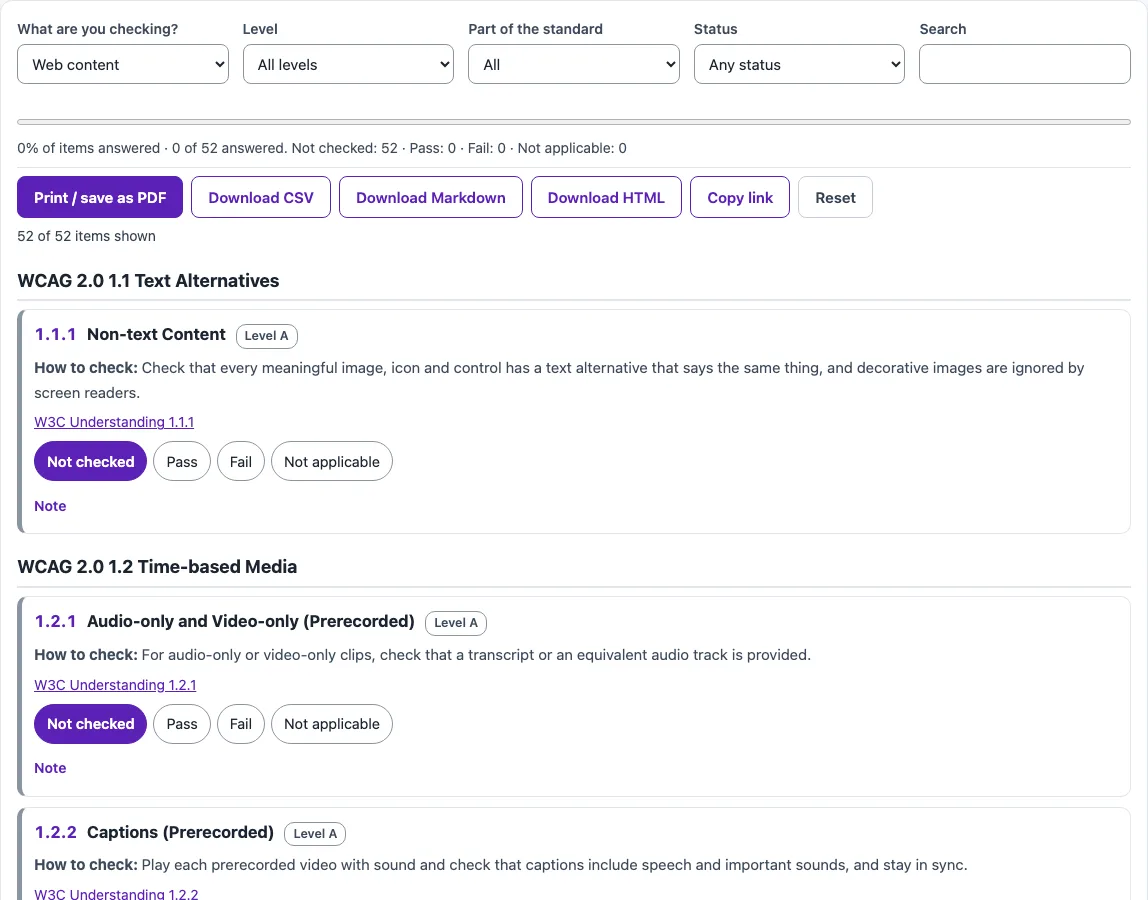
- Under “What are you checking?”, choose Web content (52 items), Documents (non-web) (48 items), or Software (non-web) (74 items). The list changes to match your choice.
- Use the filters “Level”, “Part of the standard”, “Status”, and “Search” to narrow the list.
- Open an item and read its “How to check” line. Follow the link to the official text if you need more detail.
- Set the Status radio button for the item once you have tested it.
- Type notes in the item to record what you tested, where, and what you found.
- Watch the sticky progress display to see how many items remain. Items you mark Fail can be listed on their own with the “Status” filter, which gives you a fix list for the next round.
- Work through every item in your chosen set, including those that need manual testing.
When you finish, select “Print / save as PDF” to create a printable copy. To share your results, use “Download CSV”, “Download Markdown”, or “Download HTML”. “Copy link” gives you a link that reopens the checklist with your statuses, so you can send it to a colleague; notes stay in your browser and travel only in the downloaded files. “Reset” clears the checklist, so download your results first.
What does Section 508 require for electronic content?
Section 508 requires electronic content to conform to the Level A and Level AA success criteria in WCAG 2.0. That is 38 criteria: 25 at Level A and 13 at Level AA. The standard names WCAG 2.0 specifically and does not reference WCAG 2.1 or 2.2.
Which items change when you check documents instead of web pages?
Non-Web documents do not need to meet four WCAG 2.0 criteria: 2.4.1 Bypass Blocks, 2.4.5 Multiple Ways, 3.2.3 Consistent Navigation, and 3.2.4 Consistent Identification. For non-Web documents, the standard reads “document” wherever it would say “Web page” or “page”. That is why the Documents set has four fewer items than the Web content set.
What does the software section cover?
Software that transmits information or has a user interface must conform to E207 and Chapter 5. Chapter 5 covers interoperability with assistive technology (Section 502), applications (Section 503), and authoring tools (Section 504). Web applications that do not access platform accessibility services and that conform to WCAG 2.0 A and AA do not need to meet Sections 502 or 503. Authoring tools that can export PDF 1.7 must also be able to export PDF/UA-1.
What are the Functional Performance Criteria?
Where Chapters 4 and 5 do not address a function of ICT, that function must still meet the Functional Performance Criteria in Chapter 3. These cover users who are without vision, have limited vision, are without perception of color, are without hearing, have limited hearing, are without speech, have limited manipulation, have limited reach and strength, or have limited language, cognitive, and learning abilities. Support documentation and services that an agency provides must conform to Chapter 6.
Why can’t a checklist confirm that content is accessible?
Automated checks find only part of accessibility problems, so no checklist can confirm that content is fully accessible. Manual checks, such as keyboard testing, screen reader testing, and content review, are always needed. Treat your completed checklist as a record of your review, not a verdict on the content.
Sources (checked 13 October 2026): U.S. Access Board
Frequently asked questions
Is the tool free, and is anything I paste uploaded?
Yes, the tools are free, and there is no account or sign-up. Everything runs in your browser, so nothing you paste, type, or select is uploaded.
Does Section 508 apply to private companies?
It applies to federal agencies when they develop, buy, maintain or use technology. Companies that sell software or services to those agencies are usually asked to document conformance, often in an Accessibility Conformance Report.
Is this legal advice?
No. This checklist is a testing aid and does not replace advice from a qualified legal professional.
Does Section 508 use WCAG 2.2?
No. Section 508 references WCAG 2.0 Level A and AA. If you need the newer criteria, use the WCAG 2.2 checklist linked below.
What is the difference between Section 508 and the ADA?
Section 508 of the Rehabilitation Act covers information and communication technology that U.S. federal agencies develop, buy, maintain or use, and its standard is WCAG 2.0 A and AA. The ADA Title II web rule covers state and local governments and uses WCAG 2.1 AA, so the same site can face both, with different versions.
What should I do if an item does not apply to my content?
Record the reason in the item’s notes so your reasoning stays with the item. Then set its status to reflect your decision.
Related tools
- WCAG 2.2 checklist: use it when you need the newest WCAG criteria for a web project.
- WCAG 2.1 AA checklist: use it when a project asks for WCAG 2.1 Level AA.
- ADA website compliance checklist: use it when you are reviewing a website against ADA expectations.
- VPAT template / ACR builder: use it when you need to document a product’s conformance as a VPAT or ACR.
- Accessibility statement generator: use it when you need to publish an accessibility statement.
- Website accessibility checker: use it when you want an automated scan of a web page.
- ADA compliance checker: use it when you want a quick ADA-focused check of a site.