Web Accessibility Testing: Test Plan Builder
Tick what your site contains and choose a WCAG target to get a test plan: automated checks, manual checks and assistive-technology tests.
Recent
Your last 10 settings, saved only in this browser. Nothing is uploaded.
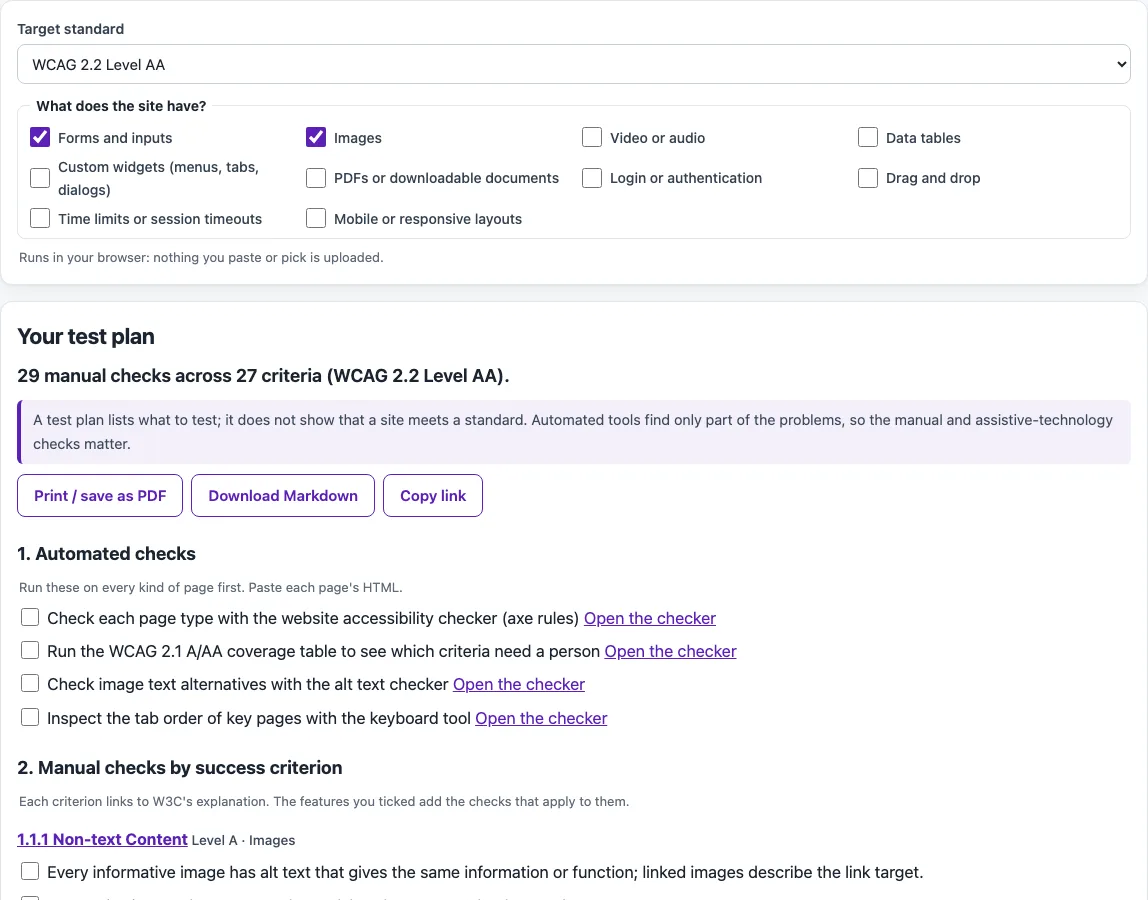
How to use the Accessibility test plan builder
- Open the target standard list and choose WCAG 2.2 Level AA (the default), WCAG 2.1 AA, or WCAG 2.0 AA (Section 508).
- Tick each of the “What does the site have?” boxes that match your site (leave a box empty if the site has none of that content, so the plan stays short): forms, images, video/audio, data tables, custom widgets, PDFs/documents, login/authentication, drag and drop, time limits, or mobile/responsive.
- Read the result. It has three parts: automated checks, manual checks grouped by WCAG success criterion, and assistive-technology and settings checks.
- In the automated checks, follow the links to the website accessibility testing tools on this site.
- On each manual check, follow the link to the W3C Understanding page for that criterion, then test the page against it.
- Tick each item when you finish it.
- Change the target or the features at any time; the plan is rebuilt straight away and keeps the ticks of items that are still on it.
Your choices and ticks are kept in the page address, so “Copy link” gives you a link that opens the same plan with the same settings. “Print / save as PDF” and “Download Markdown” save the plan as a file you can keep or share.
How do WCAG 2.0, 2.1 and 2.2 differ for web accessibility testing?
The target standard you choose is a version of the Web Content Accessibility Guidelines (WCAG). WCAG 2.0 has 61 success criteria, WCAG 2.1 has 78, and WCAG 2.2 has 86. WCAG 2.2 adds 9 criteria to 2.1 and removes 4.1.1 Parsing. Each criterion is marked Level A, AA or AAA, and Level AA is the usual target: the U.S. ADA Title II web rule names WCAG 2.1 AA, and the Revised Section 508 Standards use WCAG 2.0 AA. The criteria sit under four principles: content must be perceivable, operable, understandable and robust.
The plan only lists criteria that exist in the version you pick. Criteria that are new in 2.2, such as 2.5.8 Target Size (Minimum), only appear when WCAG 2.2 is selected. Section 508 incorporates WCAG 2.0 Level AA by reference and applies to web and non-web electronic content.
Some examples of what the criteria check:
- 1.4.3 Contrast (Minimum): text needs a contrast ratio of at least 4.5:1, or 3:1 for large text.
- 1.4.4 Resize Text: text can be resized to 200 percent without losing content or function.
- 1.4.10 Reflow: content reflows at 320 CSS pixels wide without two-dimensional scrolling. 320 CSS pixels equals a 1280 pixel viewport at 400 percent zoom.
- 2.5.8 Target Size (Minimum): pointer targets are at least 24 by 24 CSS pixels, with some exceptions.
The links from each check to the W3C Understanding pages are this site’s selection from the criteria texts. They are not an official W3C table. Automated checks catch only part of the issues, so the manual checks on the plan still need a person to work through them.
Which free web accessibility testing tools are there?
Free tools fall into three groups, and a good test plan uses at least one from each:
- Automated rule engines: axe-core is an open-source rule engine (Mozilla Public License 2.0) and runs behind this site’s website accessibility checker. Accessibility Insights for Web is a free, open-source browser extension for Chrome and Microsoft Edge whose automated checks are powered by axe-core. Lighthouse is an open-source tool with its own panel in Chrome DevTools and an accessibility category. Pa11y runs accessibility checks from the command line or Node.js.
- Screen readers: NVDA (free, Windows 10 and later), VoiceOver (built into macOS), Narrator (built into Windows 11) and TalkBack (on Android devices).
- Your own keyboard and browser: Tab through every page, zoom to 200% and 400%, and turn on forced colors or high contrast mode. These need no extra software.
Sources (checked 13 October 2026): section508.gov · W3C · W3C (2) · W3C (3) · GitHub · Accessibility Insights
Frequently asked questions
Is the tool free, and is anything I paste uploaded?
Yes, the tool is free, and nothing you paste, type or pick is uploaded. Everything runs in your browser, and there is no account or sign-up. The only things that leave your browser are the link or the file you choose to copy or save.
Does the tool test my website automatically?
No. It builds a plan based on your target standard and the features your site has. The automated checks in the plan link to separate checkers on this site, and you run them yourself.
Which WCAG version should I choose?
WCAG 2.2 Level AA is the default and the newest version in the list. Choose WCAG 2.1 AA or WCAG 2.0 AA (Section 508) if a contract, policy or rule you follow names one of those versions.
Do automated checks find every accessibility problem?
No. Automated tools detect only part of the problems, so manual checks are always needed. Keyboard testing, screen reader testing and content review cover much of what automated tools cannot see.
Does passing the checks mean my site is compliant?
No. This tool does not say a page is compliant or accessible. The plan helps you organize your testing, and it is not legal advice.
Which screen reader should I use for the assistive-technology checks?
Use the screen reader that matches the device you are testing. NVDA is a free, open-source screen reader for Windows 10 and later. VoiceOver is built into macOS. TalkBack is included on Android devices, and Narrator is built into Windows 11.
Related tools
- Website accessibility checker: use it to run automated checks on a page when you want a first pass.
- ADA compliance checker: use it when you want to see how your testing relates to ADA expectations.
- Alt text checker: use it to review the alternative text on images.
- Keyboard accessibility test: use it to check that every control works with the keyboard alone.
- WCAG 2.2 checklist: use it when you want a plain list of WCAG 2.2 criteria to work through.
- Color contrast checker: use it to check the contrast ratio of text and interface colors.