Website Accessibility Checker
Paste the HTML of a page (or open a saved .html file) and run the axe-core accessibility rules for WCAG 2.2, 2.1 or 2.0.
Recent
Your last 10 settings, saved only in this browser. Nothing is uploaded.
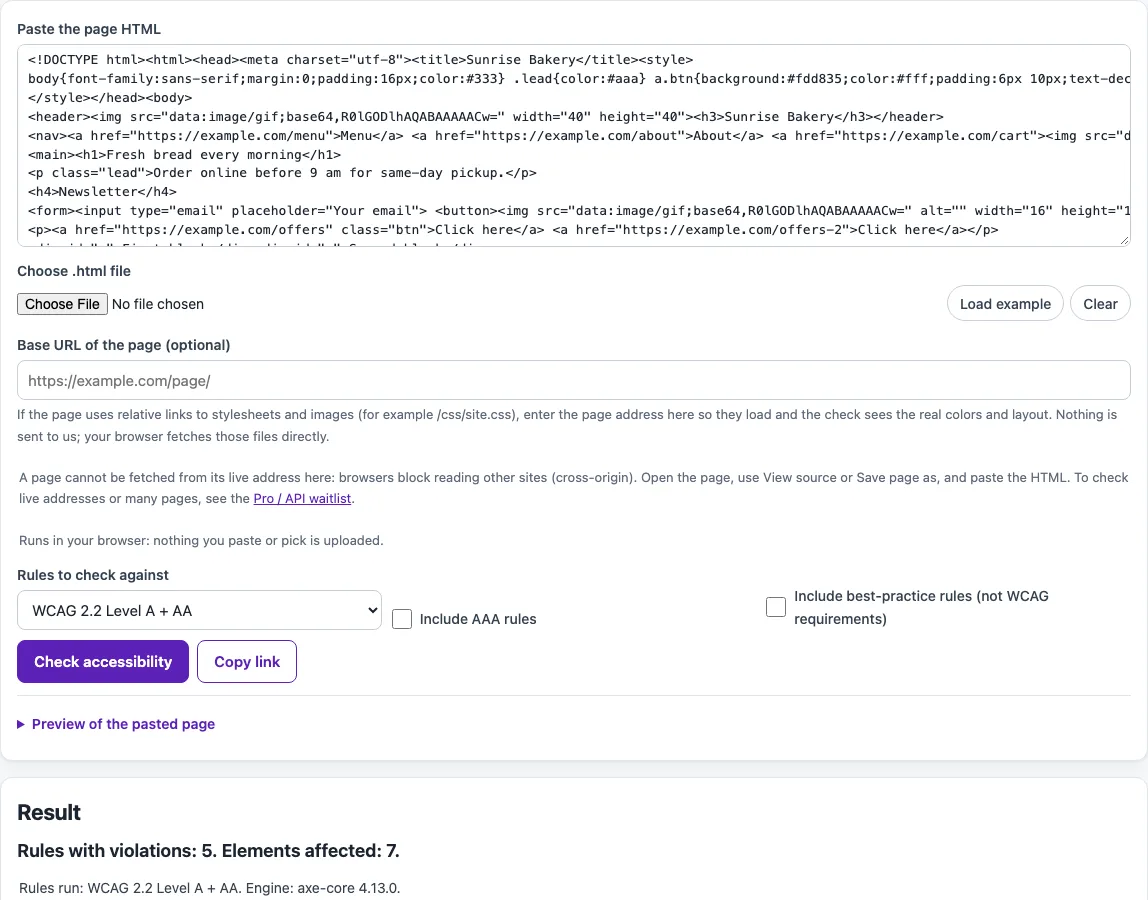
How to use the website accessibility checker
- Get the page’s HTML. Open the page, choose View Source (or copy the code from your editor), and copy everything.
- Paste the HTML into the text box, or select “Choose .html file” to load a saved page.
- Optional: enter the page’s address in “Base URL of the page” so its relative stylesheets and images load and the contrast checks see the real colors.
- Under “Rules to check against”, keep WCAG 2.2 Level A + AA, the default, or choose WCAG 2.1 or 2.0 Level A + AA.
- Tick “Include AAA rules” or “Include best-practice rules (not WCAG requirements)” only if you want those extra checks.
- Click “Check accessibility”.
- Read the counts by impact, then the “needs review” and “passed” totals.
- Open each rule to see its WCAG criteria, a link to its help page, and each failing element with its CSS selector, HTML snippet, and what to fix.
Not sure where to start? Click “Load example” to see a sample page first. After a check, “Download CSV”, “Download Markdown”, and “Print / save as PDF” save the report, “Copy summary” copies a short version, and “Copy link” creates a link that keeps your rule choices. A collapsed preview of the pasted page also appears on the page.
What does a web accessibility checker miss?
An automated checker finds only part of what WCAG asks for. Several WCAG 2.1 A and AA criteria have no axe rule at all, including 1.4.10 Reflow, 2.4.3 Focus Order, 2.4.7 Focus Visible and 3.3.1 Error Identification, and others such as 2.1.1 Keyboard are only partly covered (for example, scrollable areas that cannot be reached with the keyboard). These need manual testing with a keyboard, a screen reader, and a review of the content.
Rule tags show which standard a check comes from. Tags such as wcag2aa and wcag22aa mark WCAG 2.0, 2.1, and 2.2 Level AA rules, and best-practice marks checks that are not WCAG requirements. Criterion tags follow a pattern: wcag143 means 1.4.3 Contrast (Minimum), and wcag412 means 4.1.2 Name, Role, Value. Under 1.4.3, normal text needs a contrast ratio of at least 4.5:1, and large text needs at least 3:1.
A WCAG 2.2 AA run also includes the 2.0 and 2.1 A and AA rules, because WCAG 2.2 keeps every 2.1 criterion except 4.1.1 Parsing. In this build, the only WCAG 2.2 Level AA criterion with an axe rule is 2.5.8 Target Size (Minimum).
How does the checker run the page safely?
The checker keeps your HTML away from this site in two ways. First, pasted scripts, inline event handlers, meta refresh tags, and javascript: URLs are removed before the page is loaded. Second, the page is placed in a sandboxed iframe without allow-same-origin, so the frame cannot read this site. Color contrast needs the page to be drawn, so that check runs in an off-screen frame. Contrast over images or gradients often ends as “needs review”, because axe cannot work out which background pixels the text sits on.
The rule engine is axe-core, which is open source under the Mozilla Public License 2.0. It returns four groups: violations, passes, incomplete (“needs review”), and inapplicable. Items marked “needs review” are cases where axe could not decide, so a person must look at them.
Sources (checked 13 October 2026): GitHub · W3C · W3C (2) · W3C (3) · MDN · MDN (2)
Frequently asked questions
Is the tool free, and is anything I paste uploaded?
Yes, the tool is free, and nothing you paste, type, or choose is uploaded. Everything runs in your browser, and there is no account or sign-up.
Can I enter a web address instead of pasting HTML?
No. Browser tabs cannot read another site’s pages because of the same-origin policy. Copy the page’s HTML from its source and paste it, or choose a saved .html file.
Does a clean result mean my page is accessible?
No. A page with no violations can still have problems that automated checks cannot detect, such as unclear wording or a keyboard trap. Review the “needs review” items and run manual checks as well.
What does “needs review” mean?
It means axe could not decide whether an element passes or fails, so a person needs to look at it. Contrast results over images or gradients often land here.
Should I change the WCAG version?
Keep WCAG 2.2 Level A + AA, the default, unless a project, client, or policy names a different version. Then select that version in “Rules to check against”.
Does this tool confirm legal compliance?
No. The tool never says a page is compliant or accessible, and this is not legal advice. For questions about legal requirements, speak with a qualified professional.
Related tools
- Color contrast checker — use it to test whether a text and background color pair meets contrast guidelines.
- Color contrast finder — use it when you need to find a color that reaches a target contrast ratio.
- Color palette contrast checker — use it to check several colors from one palette against each other.
- Image contrast checker — use it when text sits on top of an image and the background varies.
- Color contrast accessibility guidelines — read it to learn the ratio rules behind the contrast results.
- ADA compliance checker — use it to see which WCAG criteria automated checks can and cannot cover.
- Alt text checker — use it to review image descriptions that automated checks flag or miss.
- Keyboard accessibility test — use it for the keyboard checks that automated tools cannot run.